Access Control
General Information
In the Azure infrastructure, it is mandatory for all users to use the Bastion Host to access internal resources (e.g., databases, cache servers, application servers, nginx settings, etc.). Only two instances are open to the outside world:
- App Gateway (HTTPS only)
- Bastion Host (SSH only)
All other internal services are closed to external access.
Access via SSH Keys
Every developer/user must use a personal SSH key. Access/connection to services such as DB and Cache is provided via SSH Tunnel.
Creating an SSH Key
To create an SSH key for a new user, you can use the following command:
ssh-keygen -t ed25519 -C "username@example.com"
Send the generated id_ed25519.pub file to your administrator or DevOps team.
Adding and Managing Permissions
All SSH-based access control is managed via the $HOME/.ssh/authorized_keys file on the relevant servers.
To grant access to a user, add their public key to this file. To revoke or temporarily block access, you can comment out the relevant line as follows:
# ssh-ed25519 AAAAC3NzaC1lZDI1NTE5AAAAIBz...USERNAME
Note: Commenting out a line blocks all access via that key. Be careful not to accidentally change other key lines.
Access permissions should not be granted unnecessarily and should be reviewed regularly.
Requesting Access
If you do not have an SSH key for accessing the Bastion Host or internal services, please contact the DevOps administrator or the relevant manager. After you provide your SSH public key, your access will be granted.
Accessing DB and Cache via SSH Tunnel
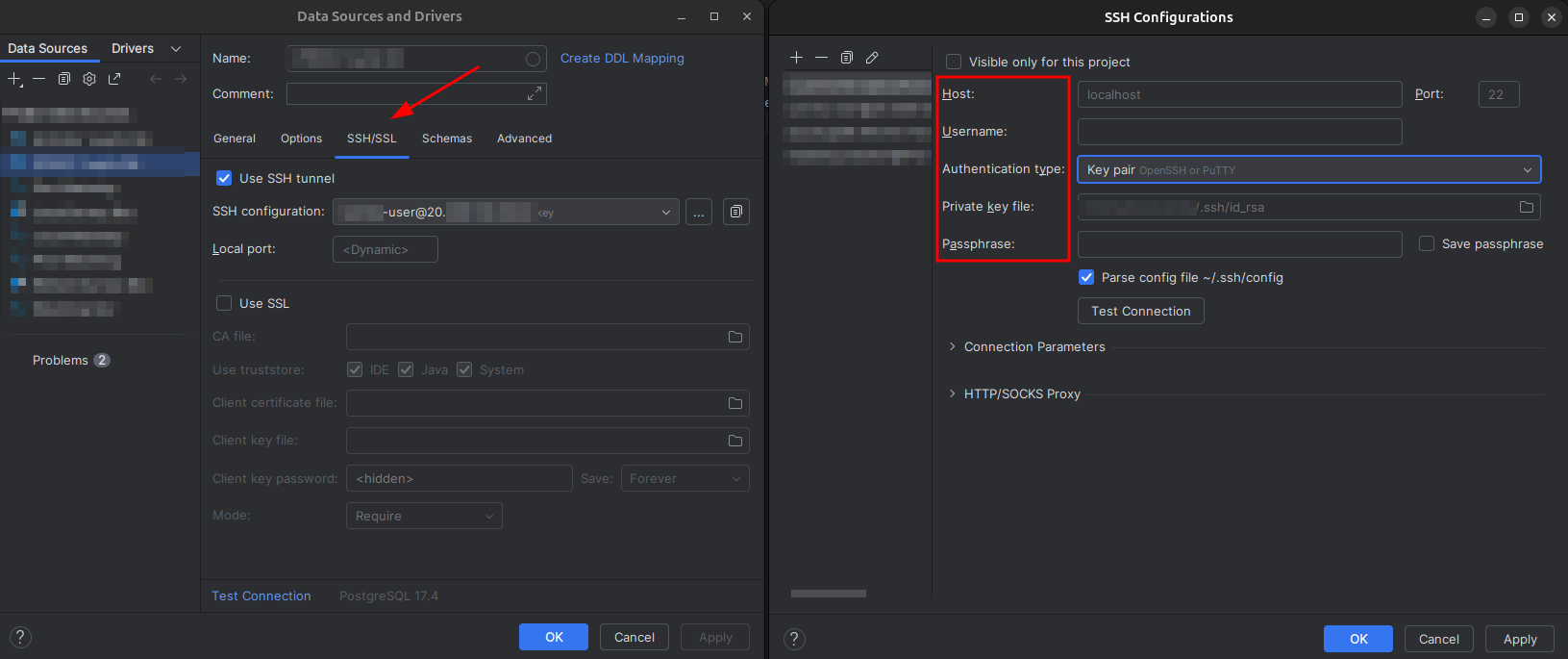
While accessing database or cache services, most database or cache clients (e.g., DataGrip, Redis Insight) have a specific section for SSH tunnel connection, and the relevant connection settings should be configured there. In your client's connection settings, you can use options like "SSH Tunnel" or "Connect via SSH" to access these services directly through the Bastion Host.
Below is an example image showing how to define an SSH tunnel in DataGrip:
If you want to manually create an SSH tunnel via terminal or command line, you can use the following commands:
General SSH Tunnel Usage
ssh -i ~/.ssh/id_ed25519 -L local_port:internal_service_address:remote_port user@bastion-host.public.ip
Where:
local_port: Port to be used on your local machineinternal_service_address: The name or IP address of the service inside Azureremote_port: The port on which the service is running (e.g., 5432 for PostgreSQL, 6379 for Redis)user: The Azure/Bastion username provided to you
Notes
- Internal services must never be made publicly accessible directly.
- Do not share your SSH keys or passwords with anyone.
- For all access requests, please contact your administrator.